Dashboard
The Dashboard is the first screen you see after logging in to the admin panel. It provides a real-time summary of your store's key metrics and recent order activity.
Overview Cards
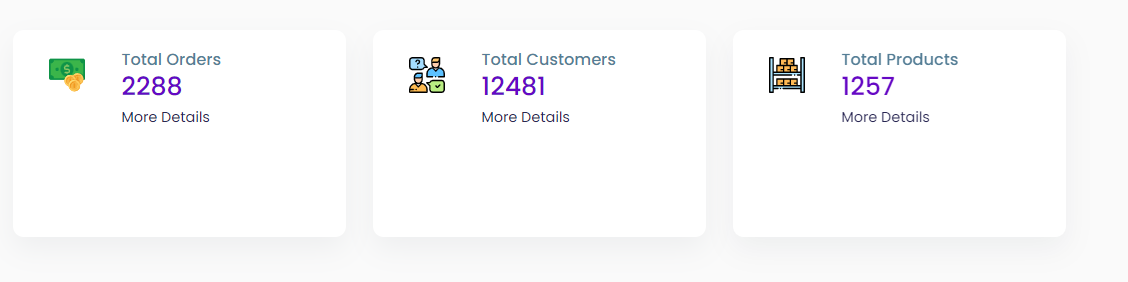
At the top of the dashboard, you'll find summary cards showing:
- Total Orders — The total number of orders placed on your store.
- Total Customers — The number of registered customers.
- Total Products — The number of products in your catalog.
- Remaining SMS Credits — Your available SMS balance for notifications.
Each card includes a "More Details" link that takes you directly to the corresponding management page (Orders, Customers, or Products).
The information displayed on the dashboard depends on the permissions assigned to your admin account. You may not see all cards if your role has limited access.
New Orders Table
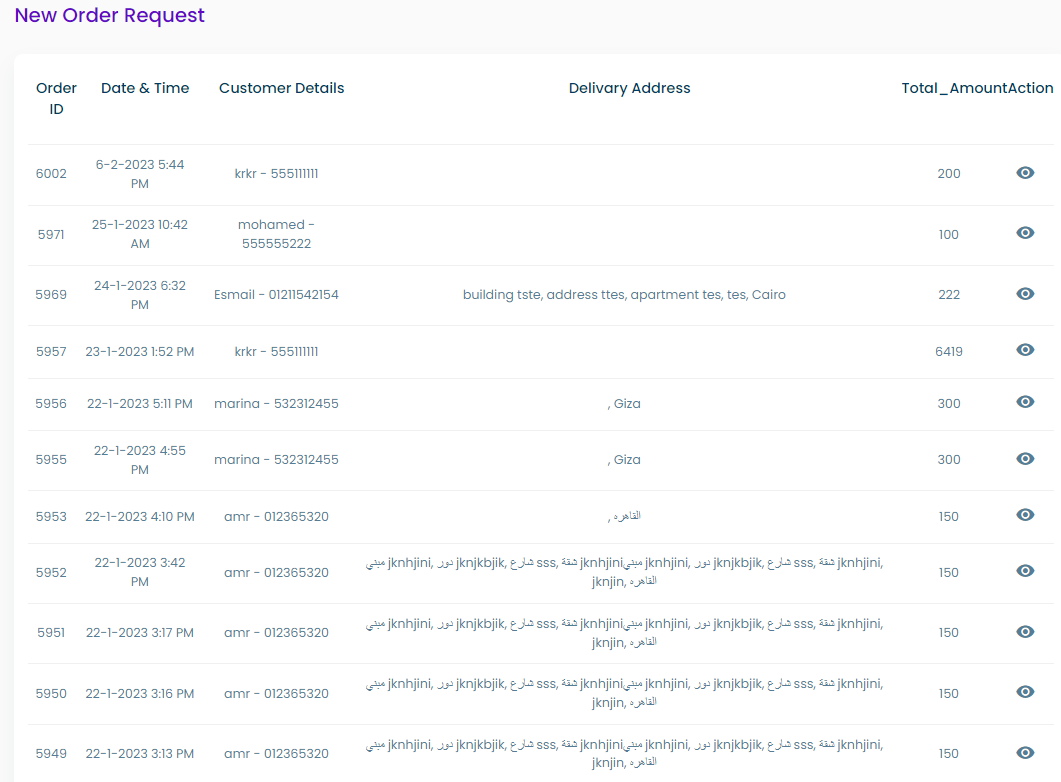
Below the summary cards, you'll find the New Orders table — a list of recent orders that haven't been fulfilled yet.
Each row in the table includes:
| Column | Description |
|---|---|
| Order ID | A unique identifier for the order |
| Date & Time | When the order was placed |
| Customer Info | Customer name and phone number |
| Delivery Address | The shipping address (if applicable) |
| Total Amount | The order total |
| Actions | A "View Order" button to see full details |
Click View Order to open the order details page, where you can review and update the order status.
Check the New Orders table regularly to ensure timely fulfillment. Orders that remain unprocessed may affect customer satisfaction.