Forgot Password
If you forget your admin panel password, you can reset it from the login page. The process consists of two steps: requesting a reset link via email, then setting a new password.
Step 1 - Request a Password Reset
- On the login page, click the Forgot Password? link.
- Enter your registered email address in the input field.
- Click Submit.
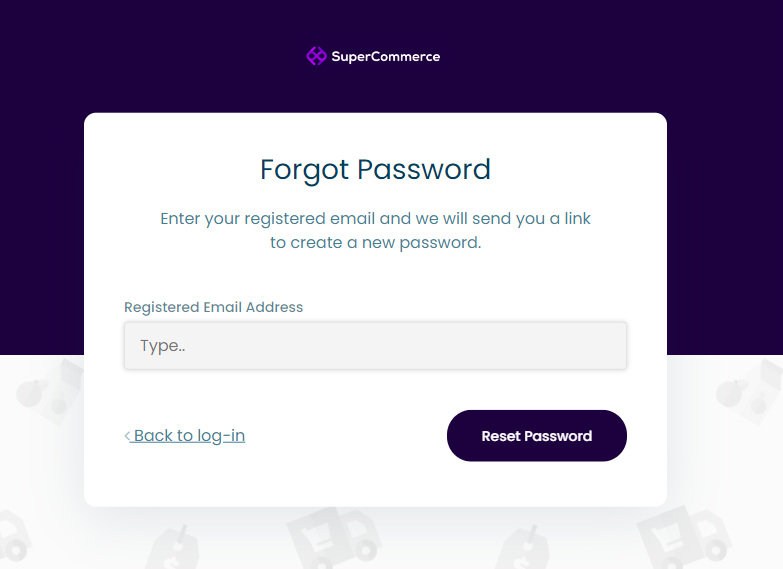
The system will respond based on the email you entered:
| Scenario | What Happens |
|---|---|
| Invalid email format | A validation message appears below the input field asking you to enter a valid email address. |
| Email not registered | The message The selected email is invalid. is displayed. |
| Valid registered email | A password reset link is sent to your inbox and a confirmation message appears on screen. |
Confirmation Screen
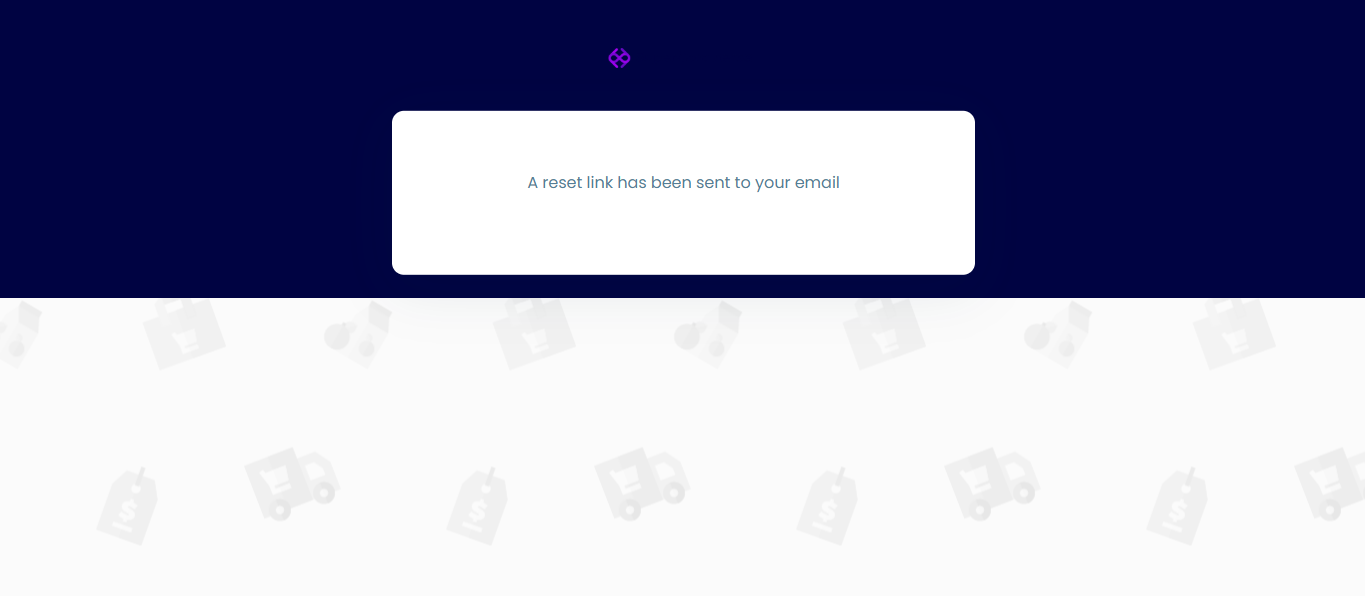
After submitting a valid registered email, you will see the following confirmation message:
Step 2 - Set a New Password
- Open the password reset email you received and click the reset link.
- You will be redirected to a page with two input fields: New Password (+8 Characters) and Confirm New Password (+8 Characters).
- Enter your new password in both fields, then click Submit.
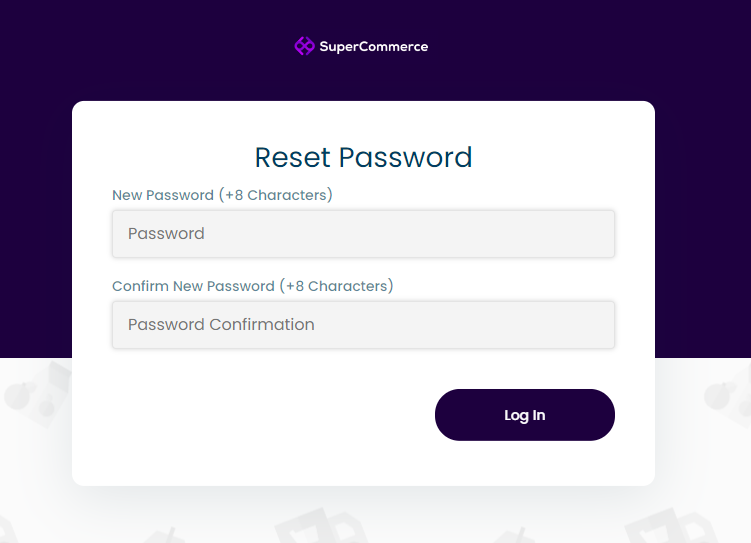
The system will validate your input:
| Scenario | What Happens |
|---|---|
| Password too short | A message appears prompting you to use at least 8 characters. |
| Passwords do not match | The message Password confirmation does not match. is displayed. |
| Valid matching password | You are redirected to the admin panel home page with your new password active. |
Strong Password
Choose a password with at least 8 characters. A mix of uppercase letters, lowercase letters, numbers, and symbols is recommended for better security.